What a deadzone changes
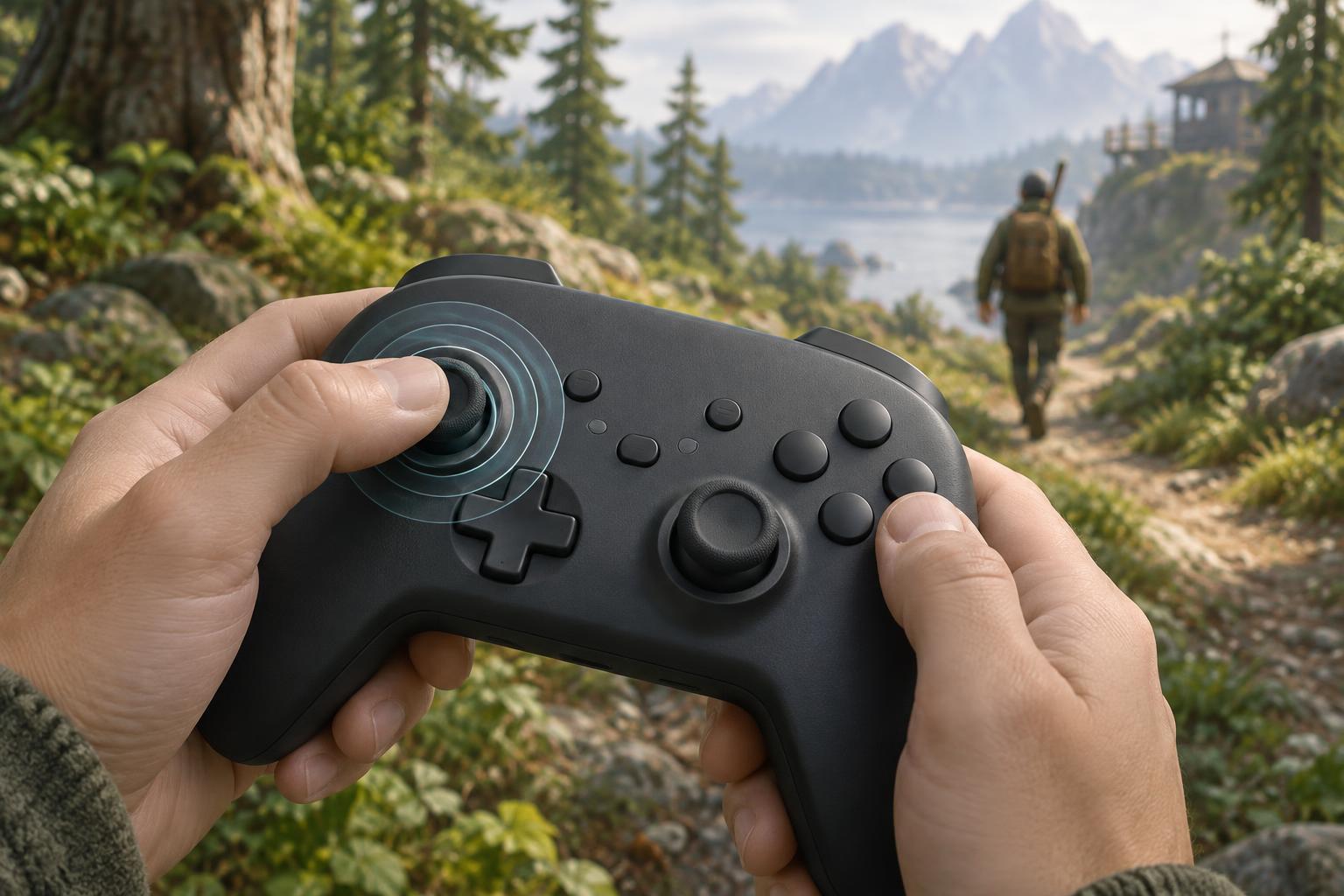
A controller deadzone is a range of stick movement that a game ignores. An inner deadzone sits around the stick’s resting position. It helps prevent a character from moving when your thumb is off the stick, especially if the controller reports a small input while supposedly centered. The trade-off is that a larger inner deadzone requires a bigger thumb movement before the character responds.
An outer deadzone affects input near the edge of the stick’s travel. Depending on the game, changing it may alter how soon movement reaches full speed. Not every game exposes this setting, and labels vary between games, platforms and controller software. Start by identifying which stick controls movement and which setting affects that stick. In a survival game where positioning matters constantly, a setting that feels fine in a menu may feel very different while weaving between enemies.
Recognize the problem before changing settings
If a character creeps across a safe area while the movement stick is untouched, the inner deadzone may be too small for that controller. If movement begins only after a noticeable push, it may be too large. Sudden or inconsistent movement can have other causes, including a worn stick, an unexpected controller profile or a game-specific control option. A deadzone adjustment can mask a small unwanted input, but it cannot reliably repair a controller that reports large or erratic inputs.
Test with your hands completely off the stick, then make several gentle movements in different directions. Look for both unintended motion at rest and a delay when you try to move. If the game has separate settings for movement and aiming, assess them separately. Aiming may benefit from different sensitivity and deadzone choices; copying one stick’s values to the other is not automatically helpful.
Find the smallest dependable inner deadzone
Begin with the game’s default setting and change only the movement stick’s inner deadzone. If the character moves without input, increase the value a little at a time until movement stops consistently. If there is no drift but movement feels sluggish, try reducing it gradually. After each change, release the stick fully, wait, and make a few small directional inputs. This is more informative than immediately testing with the stick pushed all the way to the edge.
Use ordinary play to confirm the result. In an arcade-style survival game, try stepping around a stationary obstacle, making short corrections beside enemies and changing direction after a quick stop. A useful setting lets you begin those movements without a deliberate shove while keeping the character still when you let go. If you cannot achieve both, prioritize predictable control and consider testing another controller rather than endlessly increasing the deadzone.
Check diagonals and full-speed movement
Once the stick behaves near its center, test diagonal movement. Some games use a circular, or radial, deadzone that treats directions more evenly; others use an axial approach that evaluates horizontal and vertical input separately. You do not need to know the underlying method to notice its effects. Move slowly toward each diagonal and compare it with straight up, down, left and right. If small diagonal inputs feel difficult, check for a different deadzone mode if the game offers one.
Then push the stick toward its outer edge and check whether the character reaches the expected movement speed. If the game offers an outer deadzone, adjust it only when you have a clear reason, such as difficulty reaching full-speed movement without pressing hard against the stick’s edge. Change one option at a time so you know which adjustment helped. Keep in mind that movement acceleration or character abilities may also affect how speed feels.
Make the setup comfortable and repeatable
Reliable movement is an accessibility issue as well as a performance preference. A player who finds fine thumb movements tiring may prefer a slightly larger deadzone to avoid accidental steps, while another may need a smaller one to reduce the force required to begin moving. Neither choice is universally correct. The best setting is one that supports controlled play without unnecessary strain.
If you change both controller software and in-game settings, their effects may interact. For easier troubleshooting, leave one layer at its default while tuning the other, and note the values that work for you. Recheck them when switching controllers or games rather than assuming one profile fits everything. This is unofficial editorial guidance, not a claim about any particular game’s intended settings: a short, repeatable movement test is more useful than a supposedly perfect number.