Decide what you need to see first
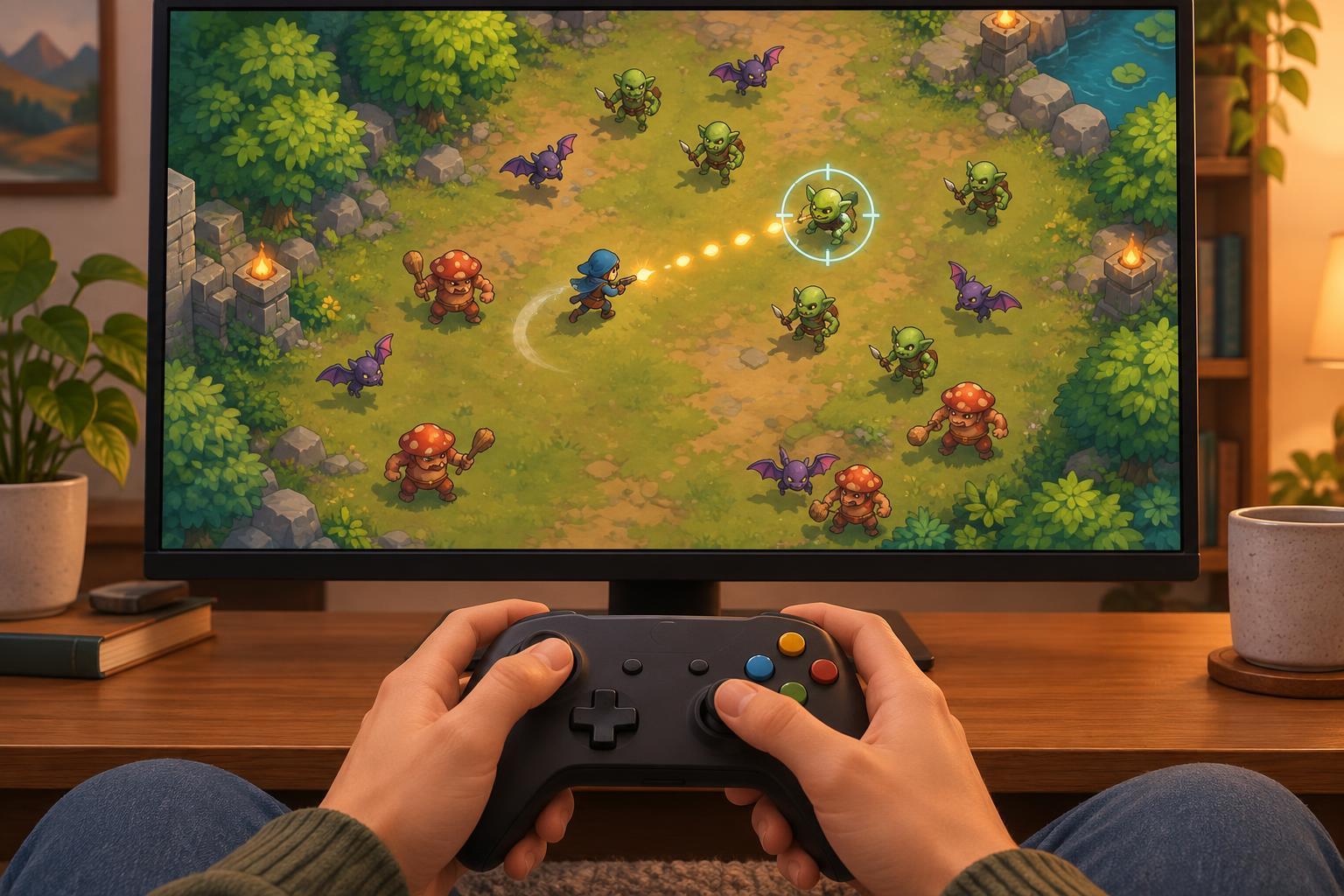
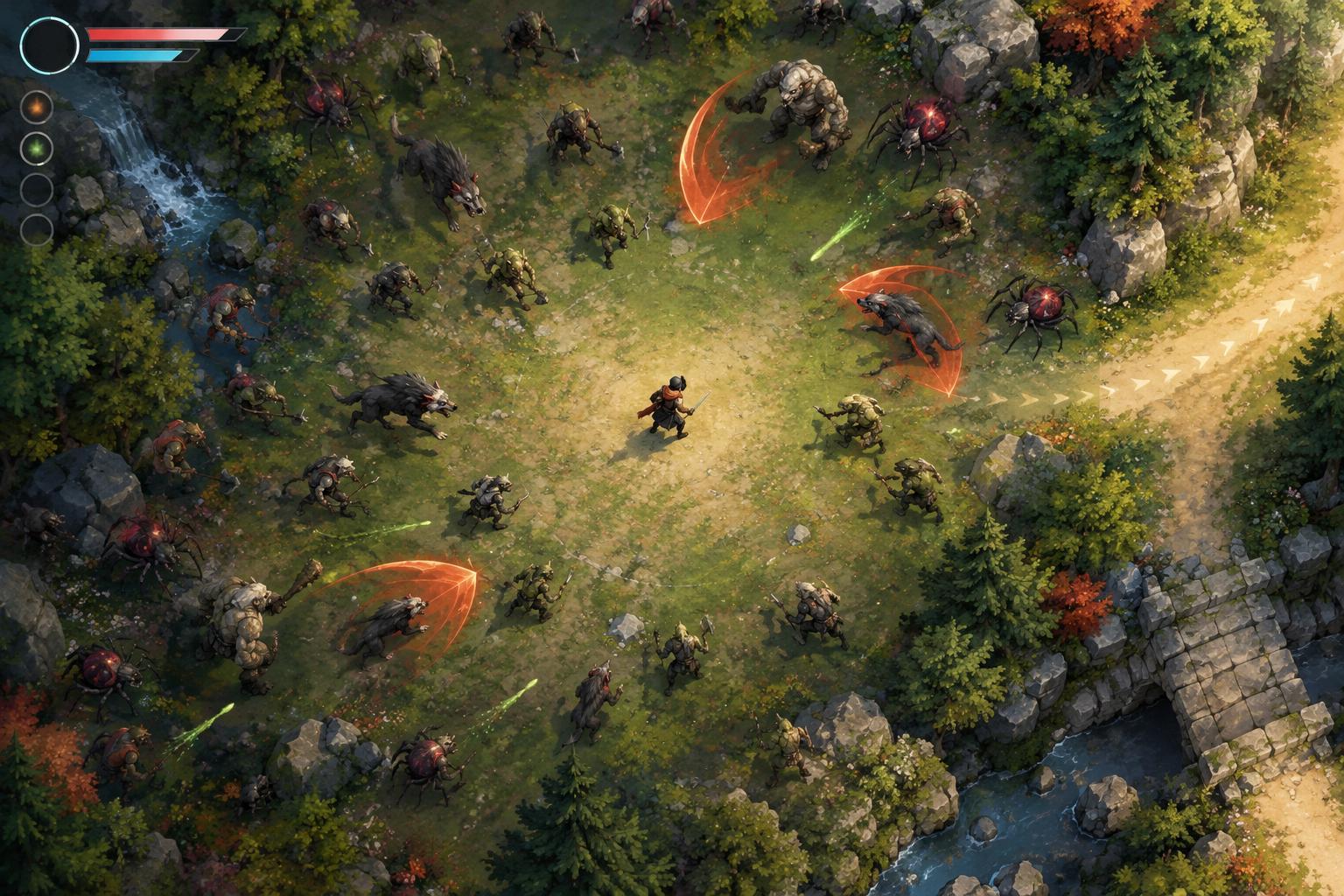
An enemy-heavy run fills the screen with movement: foes, projectiles, damage numbers, pickups, ability effects, and interface alerts. The goal is not to remove every distraction. It is to make the information that guides your next move easier to find. Before changing settings, identify your priorities. For many players, those are a safe path through the crowd, the player character’s position, nearby hazards, and a low-health warning.
Notice what you actually miss during a run. Do bright attacks hide enemy outlines? Does a large pickup label cover the space ahead? Are you watching damage numbers when you need to watch movement? Naming one problem at a time makes it easier to choose a useful adjustment. It also helps you avoid turning off feedback that you rely on, such as an indicator that an ability is ready.
Tune effects and contrast in small steps
Look through the game’s display, graphics, interface, and accessibility menus for options that affect screen noise. Depending on the game, these might include effect intensity, screen shake, damage numbers, hit flashes, particle density, transparency, or outlines. Start with the effect most likely to obscure threats. After changing it, play briefly and check whether enemies and safe routes are easier to distinguish. A series of small changes is easier to evaluate than switching everything at once.
More contrast is not always better. A very bright player outline may be easy to find but compete with warning markers; darkening all effects may make incoming attacks harder to spot. Aim for a clear visual hierarchy: hazards and your position should stand out, while routine damage and decorative effects can take a quieter role. If flashing or rapid motion is uncomfortable, explore any available reduction settings and take breaks when needed. Options vary by game, so treat menu names as possibilities rather than promises.
Make the interface easier to scan
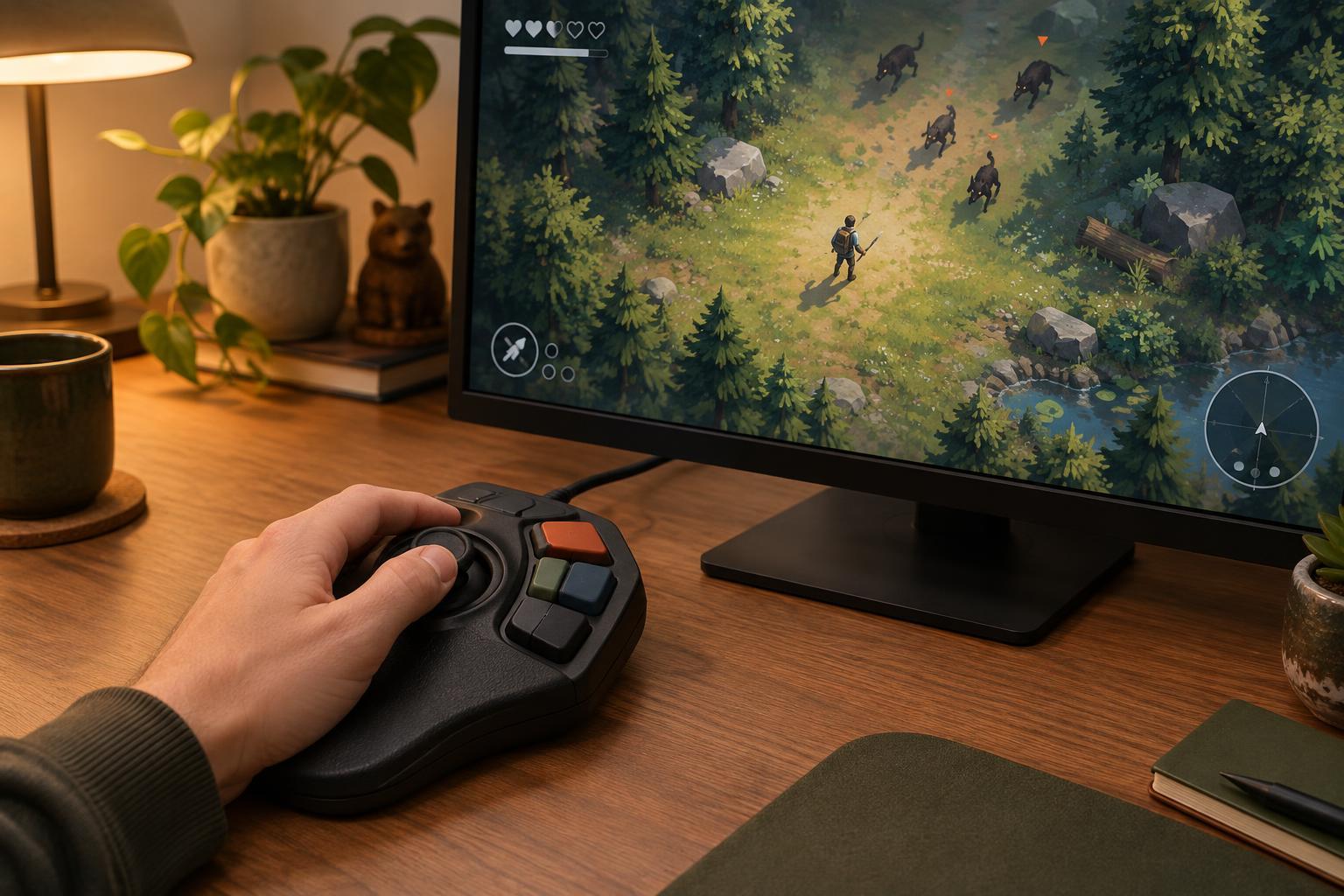
The interface can add clutter even when the playfield is readable. If available, adjust HUD scale, text size, opacity, or the placement of status information. Keep essential indicators legible at a glance, especially health and any resource you use to make immediate decisions. Optional counters can be less prominent if they pull your eyes away from the action. Some games offer separate controls for notifications or floating text; reducing repeated messages may help more than shrinking the entire HUD.
Check your display setup as well. Sitting at a comfortable distance, using a resolution that keeps text clear, and avoiding reflections can make small threats easier to pick out. Do not assume that a larger screen or a wider view automatically solves the problem: more visible space can also mean more objects to track. Test changes during a busy encounter, not only on a quiet menu screen.
Choose builds that stay readable
Build planning affects visual clarity. An attack that fills the screen with persistent effects may be powerful yet make it difficult to see approaching enemies. When choosing between upgrades with similar roles, consider how each one looks during crowded moments. A build with distinct attack shapes or predictable timing may be easier to play than one that layers several overlapping effects. This is a practical preference, not a rule that the visually busiest option is always worse.
Try to keep your movement decisions simple when the screen becomes dense. If your build encourages you to circle a group, watch the edge of the crowd and your intended exit rather than every hit animation. If it depends on holding an area, check the route out before that route closes. You can also test a new visual setting with a familiar build first; changing both your settings and strategy at once makes it harder to tell what helped.
Use a repeatable scanning routine
During a crowded run, repeatedly check three places: your character, the nearest gap or hazard, and the direction you plan to travel. Glance at health or cooldowns when you have room, then return your attention to the playfield. This routine gives your eyes a job without requiring you to process every object on screen. If you lose track of your character, slow your decision-making where the game allows rather than steering blindly toward a pickup.
After a run, change only one or two things and note the result. Did you notice threats sooner? Could you still tell when an attack connected? Was the screen more comfortable to follow over time? Keep settings and build choices that improve those answers, and restore anything that removes useful feedback. This independent editorial guide is a starting point; the clearest setup is the one that helps you make decisions in the game you are playing.