Start with the actions that matter most
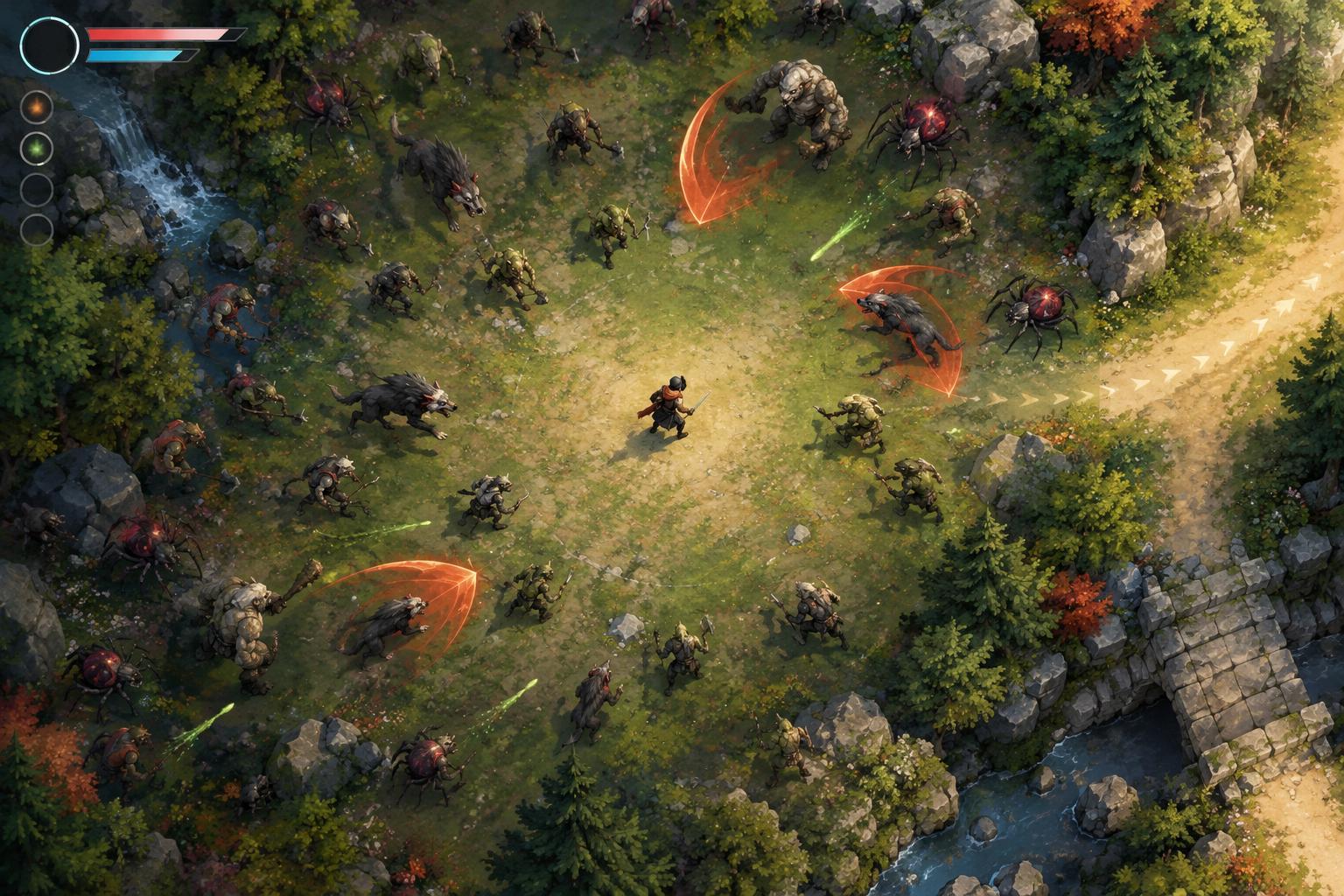
A good one-handed setup is not simply a standard control scheme squeezed onto fewer buttons. It puts the most frequent and time-sensitive actions within easy reach while moving occasional actions somewhere slower but still accessible. Before changing any bindings, list what you actually do during a run: move, aim, attack, dash, interact, pause, confirm a choice, and open a map or inventory. The list will vary by game. In some survival games, attacks happen automatically; in others, aiming or firing needs constant input.
Mark each action as continuous, urgent, or occasional. Movement is usually continuous. A dodge may be urgent even if it is rarely used. Opening a map can usually wait. Put continuous actions on the control you can use most comfortably, then give urgent actions nearby inputs that do not require an awkward stretch. If the game allows it, bind occasional actions to less convenient keys or buttons. You are designing around your own reach and endurance, not trying to copy a supposedly universal layout.
Choose a movement anchor
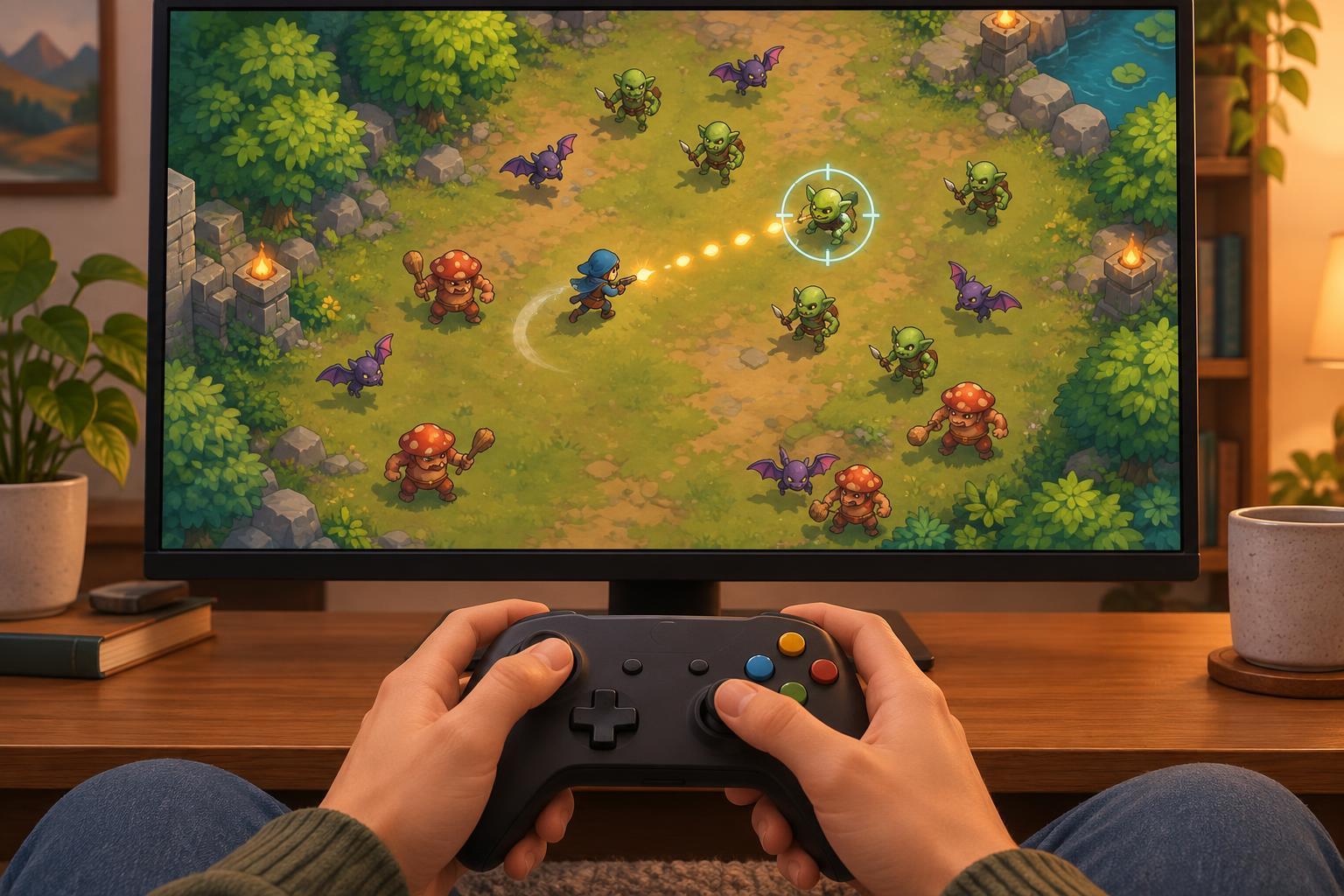
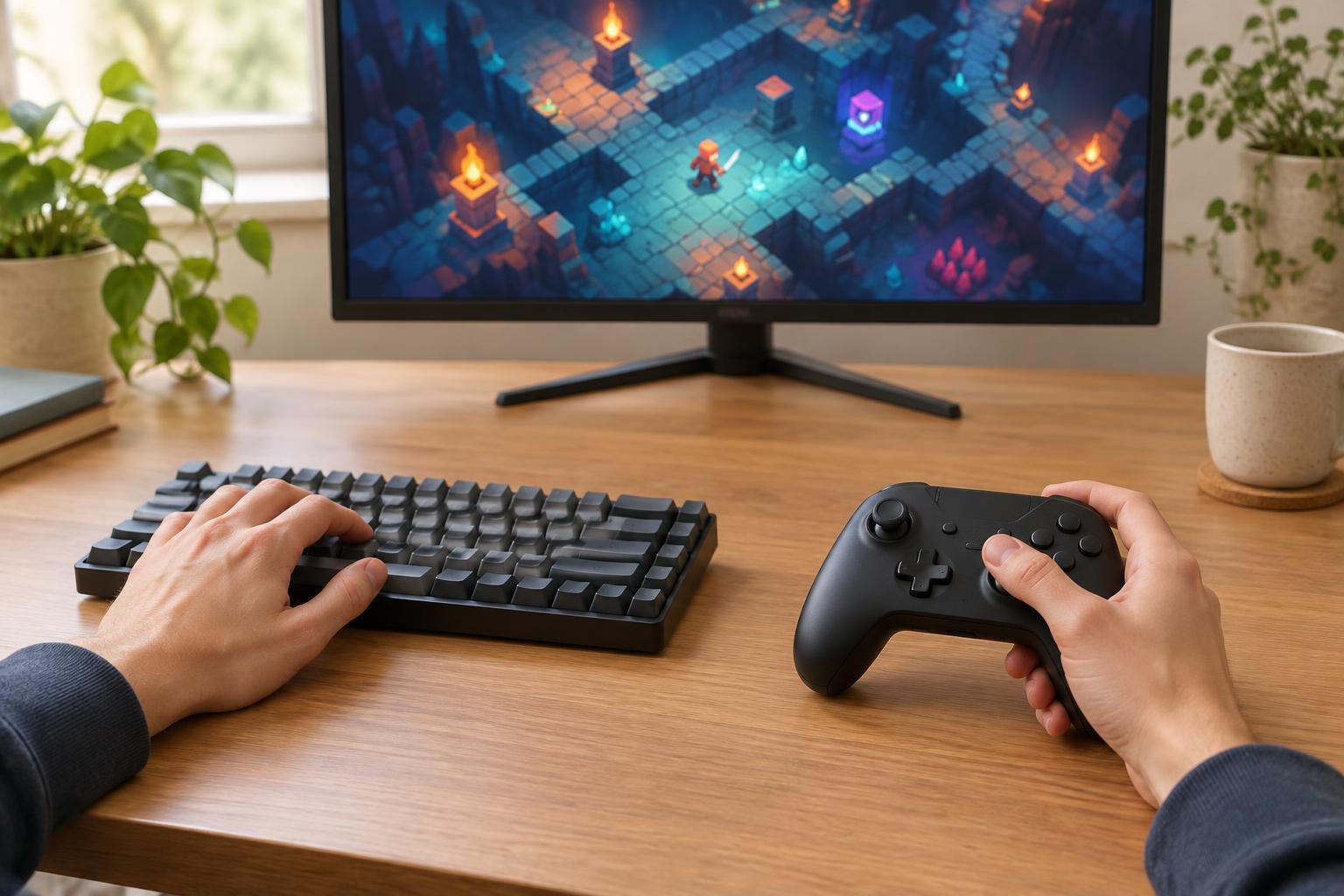
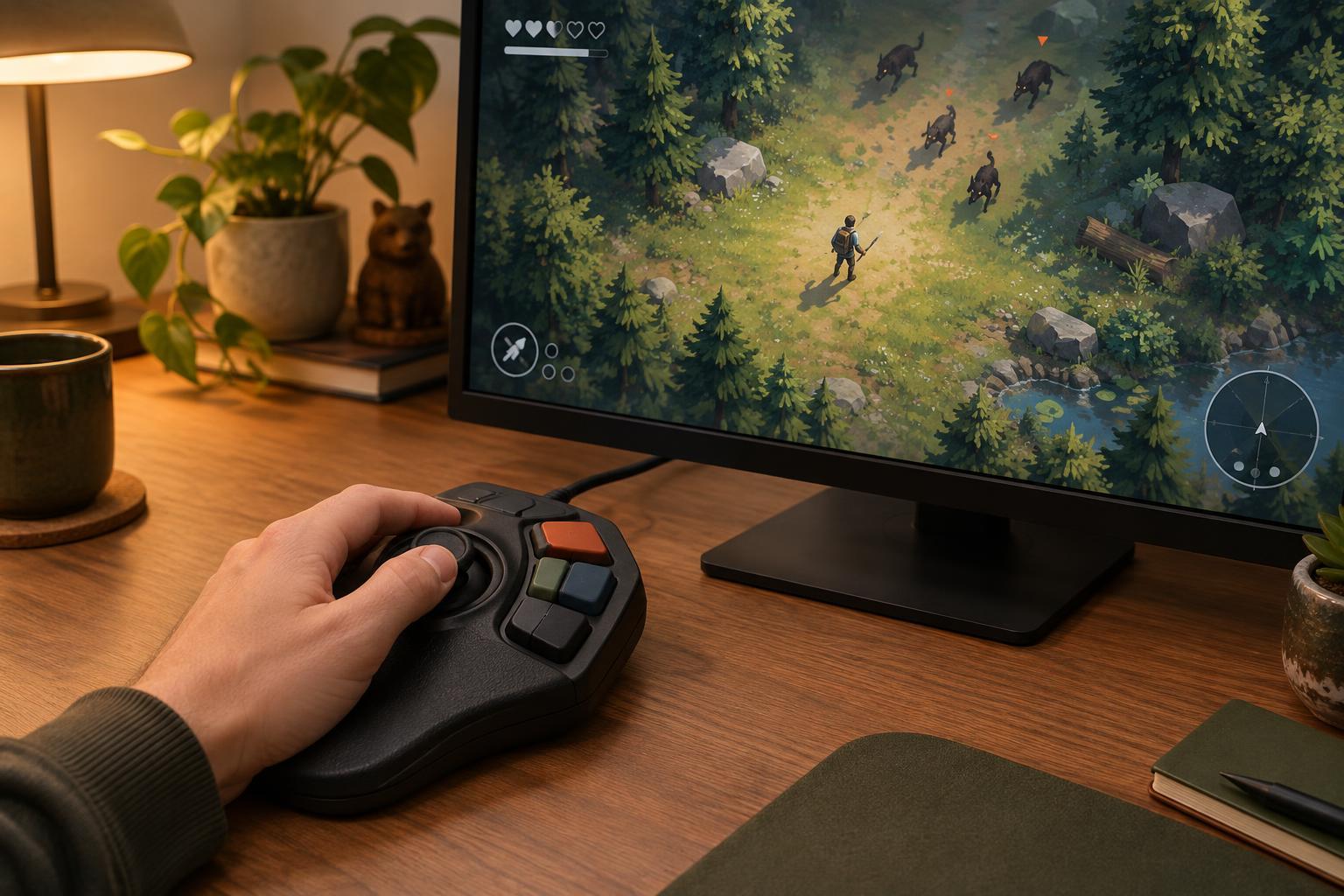
For keyboard play, a movement anchor might be a compact cluster of keys under one hand, with nearby keys handling dodge and interaction. Another option is mouse-driven movement, if the game supports it, with extra mouse buttons assigned to urgent actions. For controller play, an analog stick can serve as the anchor while the thumb and reachable fingers operate nearby face, shoulder, or rear buttons. Which side works best depends on your range of motion, grip, and device.
Test the anchor before filling every available input. Can you move in all required directions without repeatedly repositioning your hand? Can you reach the emergency action while moving? If not, change the layout rather than practicing through discomfort. Where supported, toggle options for aiming, attacking, or sprinting can reduce the need to hold a button. Check how each toggle behaves when menus open or a run ends, so an action does not remain active unexpectedly.
Use remapping and assists deliberately
Look first for the game’s own control and accessibility settings. In-game remapping is often the clearest way to see which actions can share an input and whether a menu uses different controls from gameplay. Your device or operating system may also offer button remapping, sticky keys, or other input aids. Availability and behavior vary, so test those tools with the specific game rather than assuming every remap will carry through to every screen.
A useful layout may include an alternative input for the same action. For example, a nearby key could trigger pause even when a menu button is hard to reach. If a game supports separate gameplay and menu bindings, make sure you can navigate upgrade selections, restart screens, and confirmation prompts without switching hands or devices. Be cautious about binding multiple critical actions to one button: it may save space but can cause accidental selections when the game changes state.
Test in short, low-pressure runs
Try a new layout in a tutorial, an early stage, or another low-pressure mode if one is available. Begin with movement and one urgent action. Add aiming, interaction, or menus only after the basics feel predictable. Notice the moments that make you stop moving, miss a button, or press two controls in the wrong order. Those interruptions are useful feedback about the layout, not evidence that you need to react faster.
Change one binding at a time and give it a few attempts before judging it. A short written note can help: record what changed, what improved, and what still feels difficult. If you experience strain or fatigue, take a break and reconsider the reach or amount of holding required. A setup that works for a few intense minutes may not remain comfortable through a longer session. Reducing difficulty, slowing the pace where options permit, or choosing a build with fewer manual actions can make the controls more manageable.
Let the game and build support the layout
Control choices and strategy affect each other. In a game with automatic attacks, a build that rewards steady positioning may be easier to manage than one that demands frequent, precise activations. If a dash shares the same finger you use for movement, consider whether the game offers defensive choices that rely less on split-second input. These are options to explore, not rules: the most comfortable build is the one that fits the player and the game.
Revisit the layout when new abilities appear. A control scheme can feel complete at the start of a run but become crowded after adding an active item or another menu. Keep pause and menu navigation accessible throughout, and save a record of bindings if the game does not retain profiles. One-handed play works best when the setup remains easy to understand under pressure and easy to adjust when your needs change.