Start with the screen you actually use
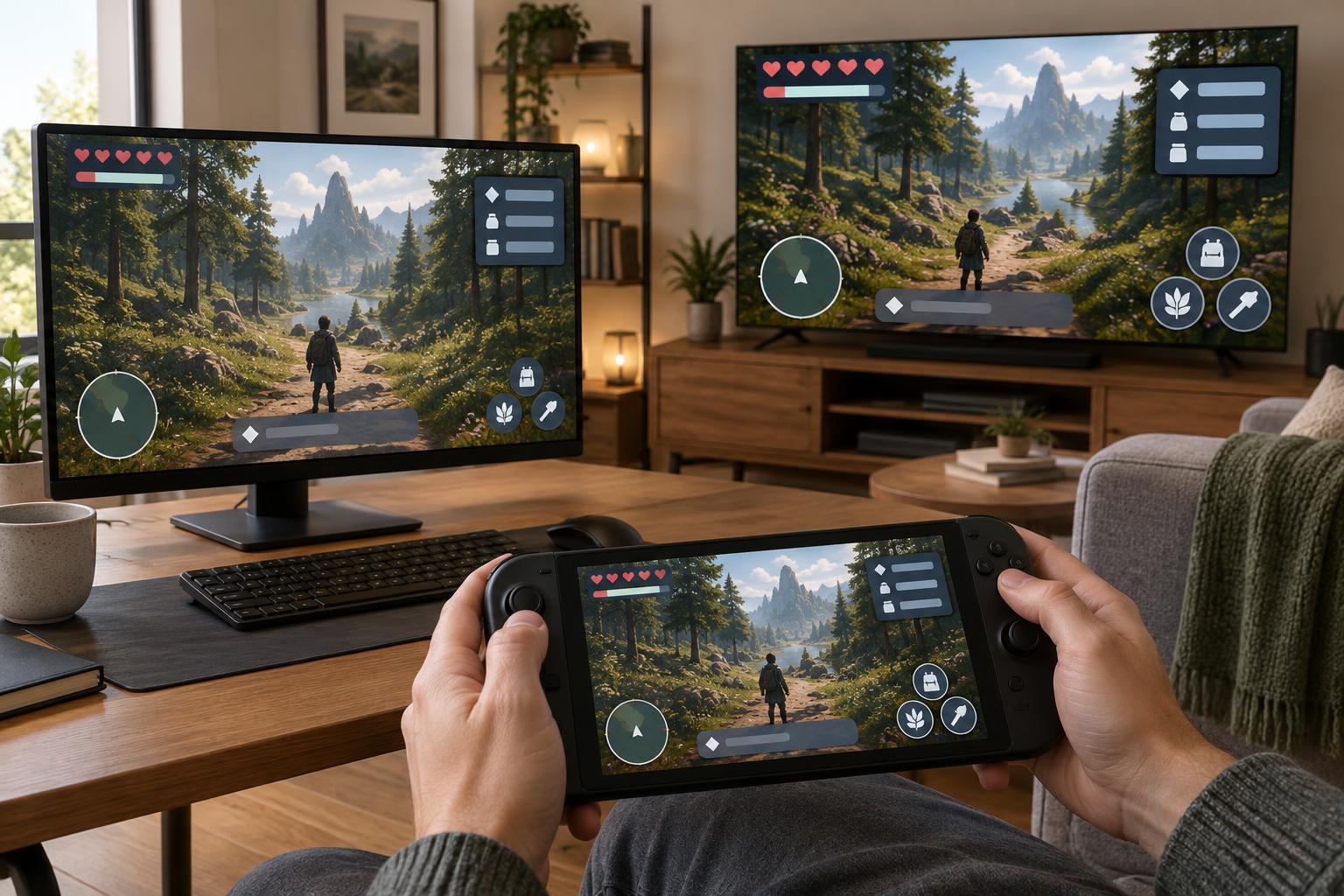
A text size that looks comfortable on a desk monitor may be difficult to read on a TV across the room. A handheld screen presents a different problem: it is close to your eyes, but its small display can crowd menus and tooltips. Rather than choosing a universal percentage, adjust each game for your usual screen, viewing distance and seating position.
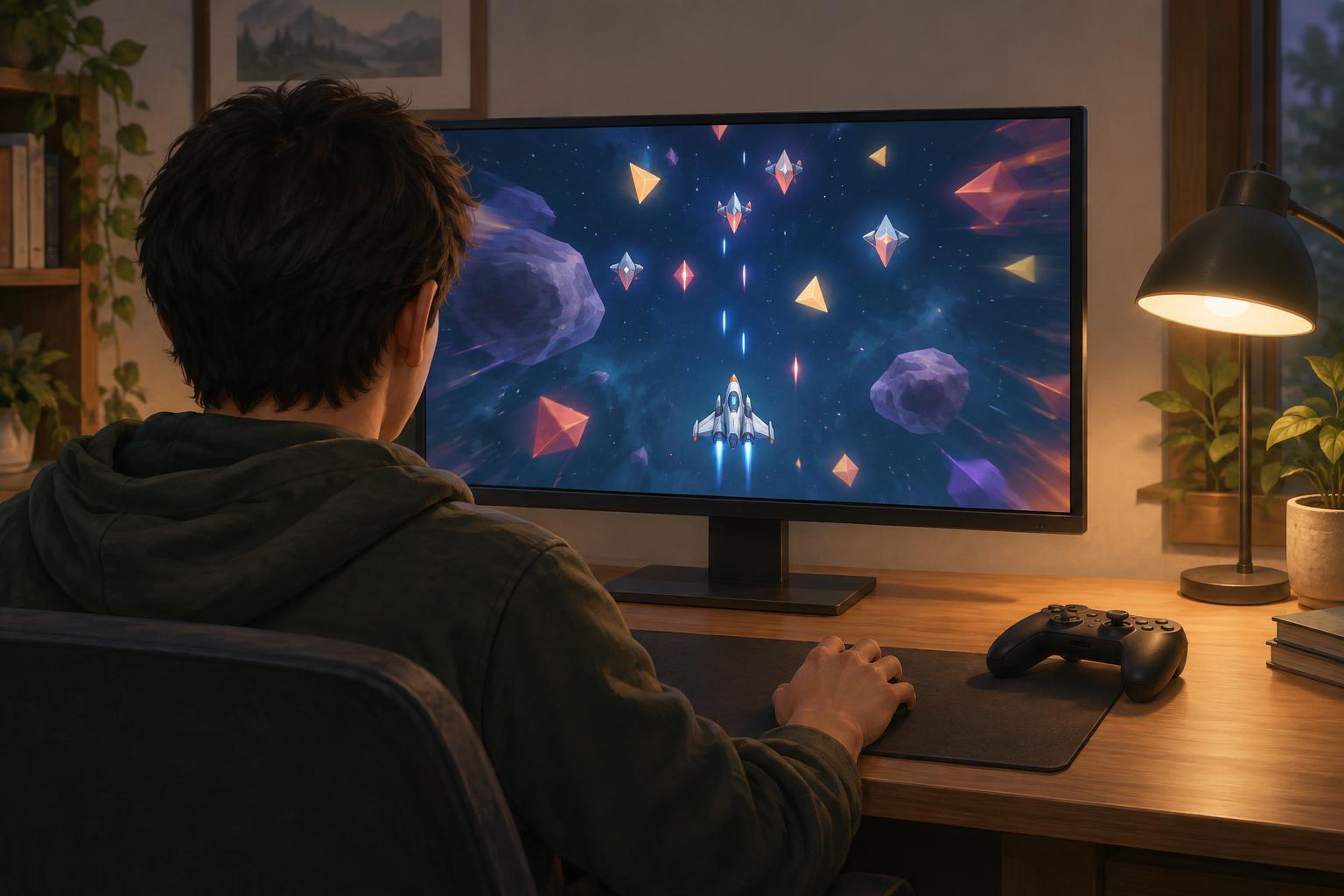
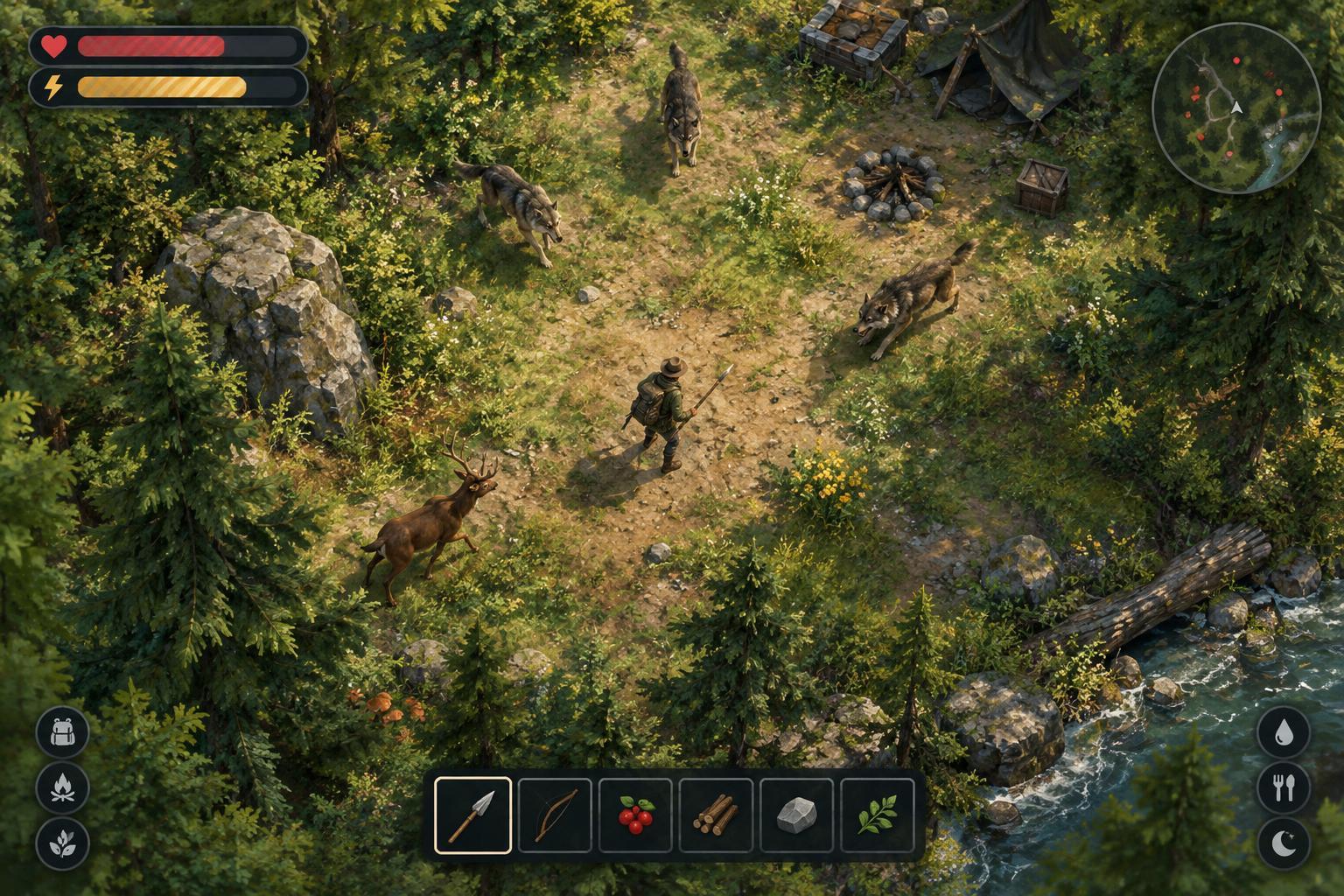
Begin at the display’s normal resolution and your preferred viewing distance. Open a menu with descriptions, not just large buttons, and read a few lines without leaning forward or squinting. Then check a busy gameplay scene. In survival and arcade-style games, the interface may need to remain legible while effects, enemies and numbers compete for attention. The best setting is one you can use during play, not merely one that looks tidy in a paused menu.
Scale text and interface elements separately when possible
Games may offer separate settings for text size, subtitle size, HUD scale and overall UI scale. Try the most specific control first. If only item descriptions are hard to read, enlarging every interface element could make the play area feel cramped. If health, cooldowns and other status indicators are too small, increasing HUD scale may help more than changing subtitles.
Increase a setting one step at a time, then check whether words wrap cleanly and whether the full interface still fits on screen. Look at long item names, upgrade choices, inventory grids and any text near the edges. Larger is not always more readable if it causes labels to overlap, cuts off instructions or covers hazards. If the game offers a safe-area adjustment, use it to keep edge-mounted information visible, particularly on a TV.
When a game has no useful scaling option, system-level display scaling or magnification may be worth trying. These tools do not affect every game in the same way, so test them before relying on them in a fast-paced run. Lowering the display resolution solely to enlarge text can make fine details less clear; compare the result with the display’s normal resolution before keeping that change.
Check contrast, motion and visual clutter
Text size is only part of readability. Pale letters over a bright scene, thin outlines and transparent panels can be hard to follow even when the font is large enough. If available, try a higher-contrast interface theme, stronger subtitle background, opaque menu panels or a different color option. Judge the result in a visually busy area as well as on a calm title screen.
Consider how quickly information appears. In a roguelite, an upgrade choice can often be read while the action is paused, but damage numbers or pickup notices may vanish quickly. Enlarging every temporary label can add clutter without making it more useful. If the game lets you reduce floating numbers, screen shake, flashes or other effects, changing those settings may make persistent information easier to find.
Color should not be the only cue you depend on. Where settings permit, pair color changes with icons, labels, outlines or distinct shapes. Check a low-health warning, a selected menu item and an unavailable button: each should remain distinguishable at a glance.
Test your settings during a short run
Use a short, low-pressure session as a readability test. Can you identify your health without searching? Can you read an upgrade description before choosing it? Can you tell which button is selected when using a controller? If you must stop and lean closer repeatedly, raise the relevant scale or improve contrast. If information blocks the action, reduce the broad UI scale and enlarge only the text or HUD elements you need.
Switching screens may call for separate adjustments. A handheld that works well in one lighting condition may need a brighter display or stronger contrast in another. A TV setup may benefit from larger subtitles and wider spacing, while a nearby monitor may leave more room for the playfield. Some games save settings per device or profile, while others do not, so it helps to remember the combinations that work for you.
Choose comfort over a perfectly minimal screen
A compact interface can look elegant in screenshots, but the useful question is whether you can act on its information without strain. Keep essential indicators easy to locate and let optional decoration take a lower priority. If a game provides few accessibility controls, you can still experiment with viewing distance, display placement and any available subtitle or HUD options.
Revisit the settings after you learn the game. Beginners may need prominent labels and tooltips; experienced players may prefer a little more space around the action. Neither choice is inherently better. A readable setup is one that lets you understand decisions, notice warnings and enjoy the pace of play on the screen in front of you.