Start with the actions you use most
Survival and arcade games can ask you to move, aim, dodge, interact and open menus while the screen stays busy. If an input feels awkward, remapping may help. You do not need a perfect layout on the first try: the goal is to make frequent actions comfortable and important actions easy to find. This is an independent, general guide rather than an official control scheme for any particular game.
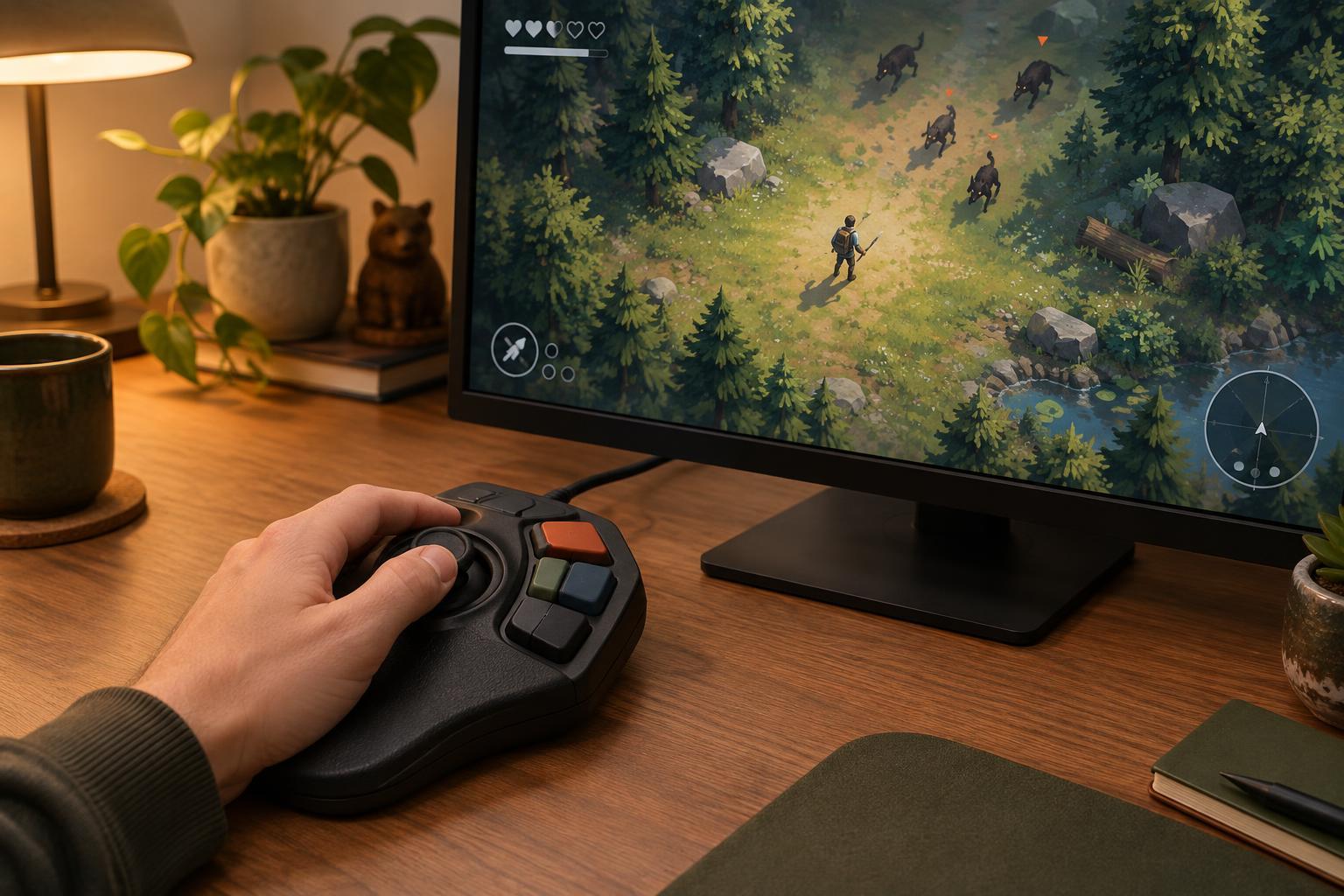
Play a short, low-pressure session before changing anything. Notice when you have to look down at your hands, stretch for a key or move a thumb away from movement to reach another button. Separate actions you use constantly from those you use only between encounters. Movement, attacks and dodges usually deserve the easiest positions; map screens and other occasional commands can often sit farther away.
Build a layout around your hands
On a keyboard, keep related actions near the keys where your hand naturally rests. If movement uses WASD, nearby keys such as Q, E, R or F may suit frequent actions, provided they do not make movement uncomfortable. A mouse button can be useful for an action you need while moving, but avoid assigning so many commands to one hand that you regularly press the wrong one. If you use arrow keys, a different keyboard layout or one-handed input, use your natural resting position as the starting point instead.
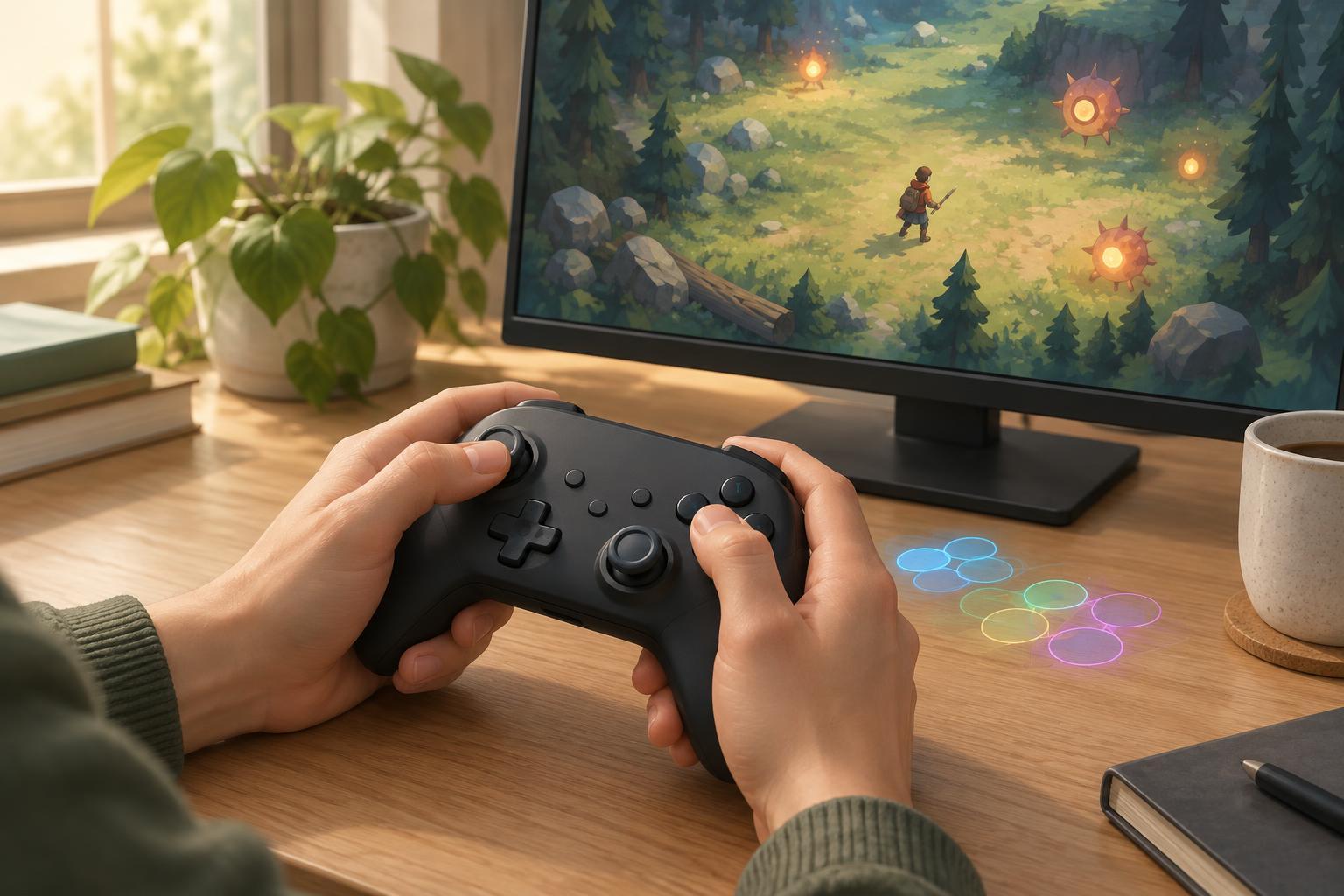
On a controller, think about what happens when your thumb leaves a stick. If you need to steer while dodging or attacking, a shoulder button or trigger may feel easier to reach than a face button. That is not a universal rule: grip, controller shape and the game’s demands all matter. Check for settings such as hold versus toggle, aim sensitivity or stick dead zones before assuming a button swap alone will fix the problem.
Change one thing, then test it
Take a note of the default bindings, or use the game’s reset option if it has one. Remap one or two actions at a time so you can tell whether a change helps. Test the new layout in a safe area, tutorial or early run. Try moving in several directions while using your most important actions, then check whether you can still pause and navigate menus without confusion.
Give a new binding a few attempts before judging it. An unfamiliar button can feel wrong simply because you have not learned it yet. On the other hand, repeated missed inputs, hand strain or difficulty reaching a command are good reasons to revise it. If two actions cannot share a button, decide which one needs the easier position during play rather than forcing both into a cramped layout.
Use accessibility options alongside remapping
Control comfort involves more than button placement. Where available, options such as toggle inputs, adjustable sensitivity, aim assistance, vibration settings and reduced button-mashing can change how demanding an action feels. Some games also let you adjust text size or visual effects, which may make prompts and hazards easier to distinguish. Explore these options as tools to try, not settings you are expected to use.
Check whether the game, controller software or operating system offers remapping, and be aware that changes at different levels can overlap. A system-wide button swap may affect menus or other games as well. If a layout behaves unexpectedly, look for duplicate bindings and check each place where an input might have been changed. Keeping a simple record of your preferred setup makes it easier to restore later.
Keep the layout understandable
A good layout should still make sense after you take a break. Group similar actions where possible and avoid placing a high-stakes command next to one you press absentmindedly. If you share a device, use separate profiles when available or save a note of each person’s bindings. Remember that on-screen button prompts may not always update when controls are changed outside the game.
Remapping is a small experiment, not a test of skill. Start with the action that causes the most trouble, make a modest change and see whether play feels clearer over several sessions. The best setup is one you can use reliably and comfortably, even if it looks nothing like the default.